Student License Overview
Overview and Getting Started Guide
Acrobat Studio for Education is Adobe’s document productivity platform designed for creating, editing, sharing, and collaborating on PDF documents. Acrobat Studio centers on document workflows — forms, signatures, accessibility, markup, and structured collaboration.
This subscription provides access to advanced PDF tools that support academic, research, and administrative work.
What Acrobat Studio for Higher Education Includes
Acrobat Studio for Higher Education provides an essential selection of apps to meet your document and quick multimedia and design work
Apps:
· Acrobat DC Standard · Acrobat Pro and Reader · Adobe Express Premium
Services:
· Adobe Acrobat · Adobe Express · Adobe Firefly · Adobe Portfolio · Adobe Stock Images in Express · Adobe Fonts
How to Approach Getting Started
If you have not already done so, go to webstore.illinois.edu, login and purchase the offer from the catalog. Customers are limited to one license per subscription year and must login to their own WebStore account to purchase this subscription for themselves. Customers cannot purchase this subscription for another person. (Department purchasers looking for the Adobe Acrobat Studio Student Employee license should search on Adobe Acrobat in the Unit Shop section of the WebStore.)
How to purchase the Adobe Acrobat Studio subscription
· The Adobe Acrobat Studio EDU license is available in the WebStore catalog by searching on Adobe Acrobat.
· Check that your contact email address is your University email. This information will be used to create your Adobe account. Non-university email addresses will fail to activate.
· Purchase the offer and confirm your order receipt.
Suggested steps after confirming your completed order:
- Wait at least two hours for the automated activation to complete with Adobe.
- Sign in to your Adobe account using your University account credentials.
- Access your apps at https://www.adobe.com/apps/all/all-platforms
- Acrobat Pro is available as a desktop app and on the web.
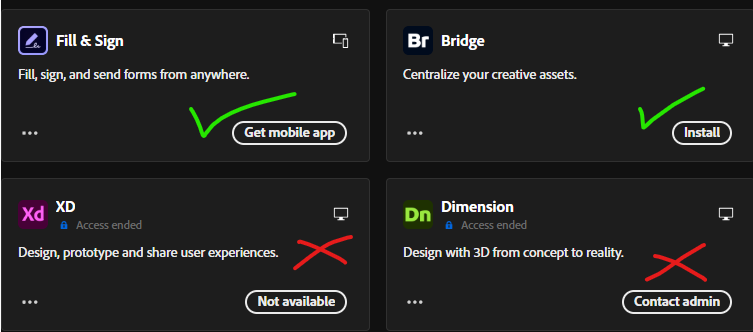
- Apps that are listed in your Apps panel to Open, Get Mobile app or Install are a part of your plan.
- Apps that say “Contact admin” are NOT a part of your plan.
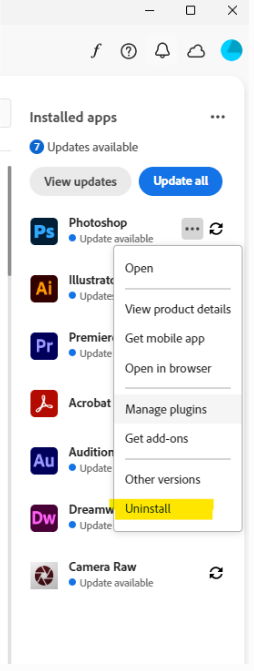
Previously installed Creative Cloud Apps that are no longer licensed:
After you sign back in to your Creative Cloud desktop app, previously installed apps will be shown in the right menu column.
You can uninstall apps that are no licensed by right clicking the app and choosing “Uninstall”.
Best Use Cases in Academic Settings
Students often use Acrobat Studio for:
• Editing and annotating research papers
• Preparing accessible course materials
• Creating fillable forms
• Combining multiple PDFs into a single submission
• Applying secure digital signatures
• Reviewing and commenting on shared documents
Once your license is active, it’s helpful to think of Acrobat Studio as a workflow tool. Most users benefit from starting with a practical task they already need to complete.
Expectations and Support
Acrobat Studio is a streamlined set of apps that should support most academic coursework involving PDF review, editing, and collaboration. Users should expect a short adjustment period if they are transitioning from Creative Cloud Suite Desktop apps.
For help with specific features, Adobe’s built-in Help provides guided tutorials.
University support documentation may also be available for common workflows.