Sassafras K2 Key Access Client
The Sassafras K2 Key Access Client is required to license the following applications:
- NVivo
- Stata
- SketchUp
- ATLAS.ti
Important Requirement
!!! warning "VPN Required" You must be connected to the campus VPN (Tunnel All) when installing, verifying, and registering this software.
https://webstore.illinois.edu/shop/search.aspx?keyword=vpn
Before You Begin
Supported Versions Only
The WebStore KeyServer requires:
- Version 7.8 or 7.9 of the K2 Client
- Older or newer versions will not work
Key Concept
!!! warning "Connection Required Before Registration"
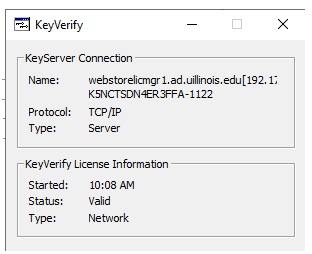
Your computer must show a Valid connection in the KeyAccess Client
before submitting the registration form
If the status is not *Valid*, your computer cannot be registered.
Quick Checklist
- Installed K2 Client (v7.8 or 7.9)
- Connected to VPN (Tunnel All)
- Status shows Valid
- Registration form submitted
Install the K2 Client
Windows
- Download the K2 Client from your WebStore order
- Run the installer
- Enter the K2 Server Name (found in your WebStore order)
- Select Basic Client
- Complete installation
- Restart your computer
Mac
- Download the K2 Client from your WebStore order
- Run the installer
- Enter the K2 Server Name (from your WebStore order)
- Complete installation
- Restart your computer
Connect and Verify
After installation:
- Connect to VPN using Tunnel All
- UIC users: use Library Resources
- Open the KeyAccess / KeyVerify program
- Check the Status
Expected Result
- Status should be: Valid
If Status is NOT Valid
Check the following:
- VPN is connected (Tunnel All)
- Network connection is active
- Correct client version is installed (7.8 or 7.9)
If needed: - Reinstall the client from your WebStore order
Register Your Computer
Once your status is Valid:
-
Submit the registration form:
https://forms.illinois.edu/auth/185257 -
WebStore will:
- Register your computer on the KeyServer
- Send your license activation information
What Happens Next
After registration:
- You will receive activation details
- Your licensed software will become usable
Example: Valid Status