COMSOL Multiphysics 6.4 Installation
Follow the steps below to install and use COMSOL Multiphysics.
Quick Checklist
- Computer registered
- VPN connected
- License info ready
- Correct modules selected
- License Manager NOT installed
VPN Required
!!! warning You must be connected to the campus VPN when installing and using COMSOL, especially off-campus.
Step 1 — Register Your Computer
!!! warning "Required Before Installation" Your computer must be registered before installing COMSOL.
- You may register up to two computers per license
- Only one computer can be used at a time
Submit the registration form and wait for confirmation before continuing.
Step 2 — Start Installation
- Mount the ISO file
- Run setup.exe
- Select your preferred language
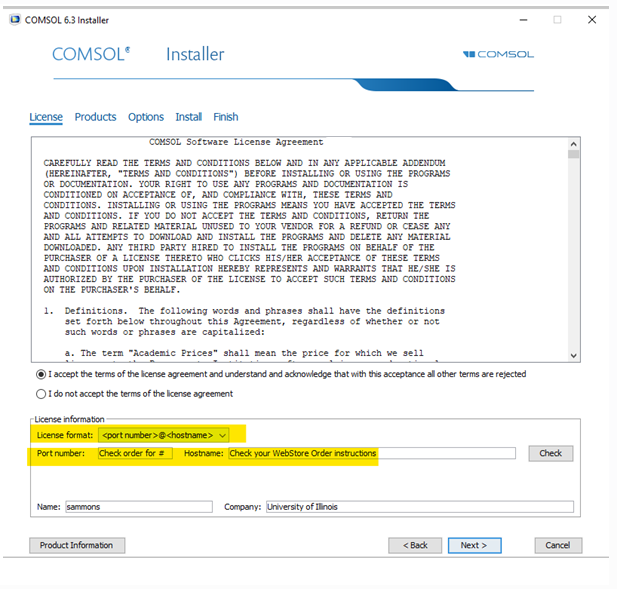
Step 3 — Enter License Information
- Choose: New COMSOL Installation
- Accept the license agreement
-
Enter license server format:
@ -
This information is available in your WebStore order
!!! note
The installer may take a few minutes to verify your license.
Click Next only once and wait.
Step 4 — Select Components
!!! warning "Important Selection Rules"
- Only install modules you have purchased
- Deselect any modules you do NOT own
- **DO NOT install the License Manager**
Step 5 — Install
- Review your selections
- Click Install
- Allow installation to complete
If prompted for updates:
- Accept terms
- Continue installation
Finish
- Click Close when installation completes
- COMSOL is now ready to use
Troubleshooting
If installation fails:
- Click View Log
- Save the log location for support
Reminder
- VPN is required for off-campus use
- Ensure your computer is registered before launching COMSOL